Clash Verge Rev
Clash Verge Rev
Recommended Client for Windows · 2024 Selection
🚀 Supports Hysteria2/VLESS
🛡️ Powered by Meta Core (Mihomo)
🎨 Modern Material Design UI
⚡ Scripting & Tun Mode Support
⚠️ Installation Note
Please ensure to install in a path with NO Chinese characters, otherwise it may cause runtime errors.
Use left for PC; Arm64 for Surface Pro X, ThinkPad x13s etc.
Quick Start
1️⃣
Login
➜
2️⃣
User Center
➜
3️⃣
Subscribe
➜
4️⃣
Import
Detailed Guide
1
Get Subscription Link
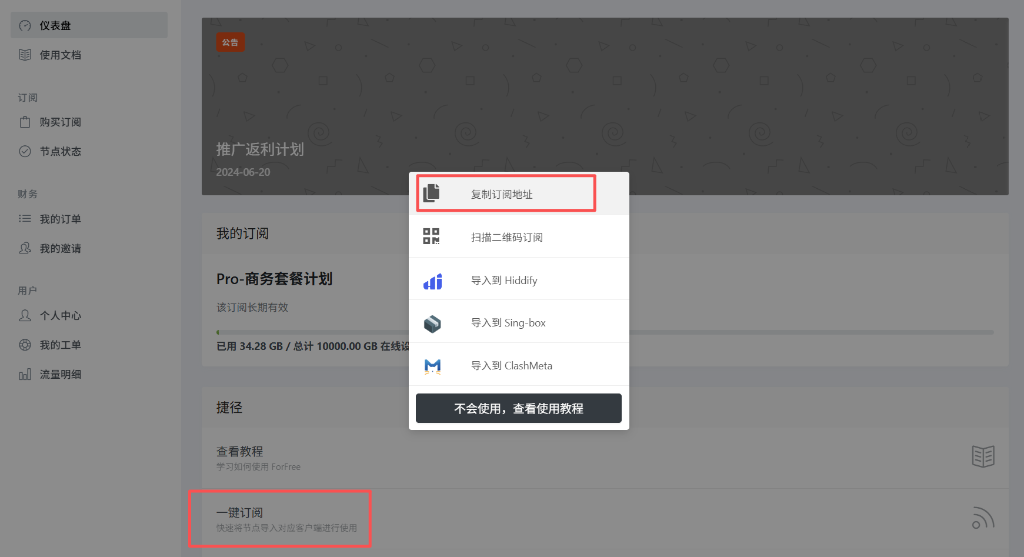
Visit ForFree User Center, find the "One-Click Subscribe" area.
💡 We recommend clicking "Copy Subscription Address". This is more stable than one-click import and works for all clients.
2
Import Subscription
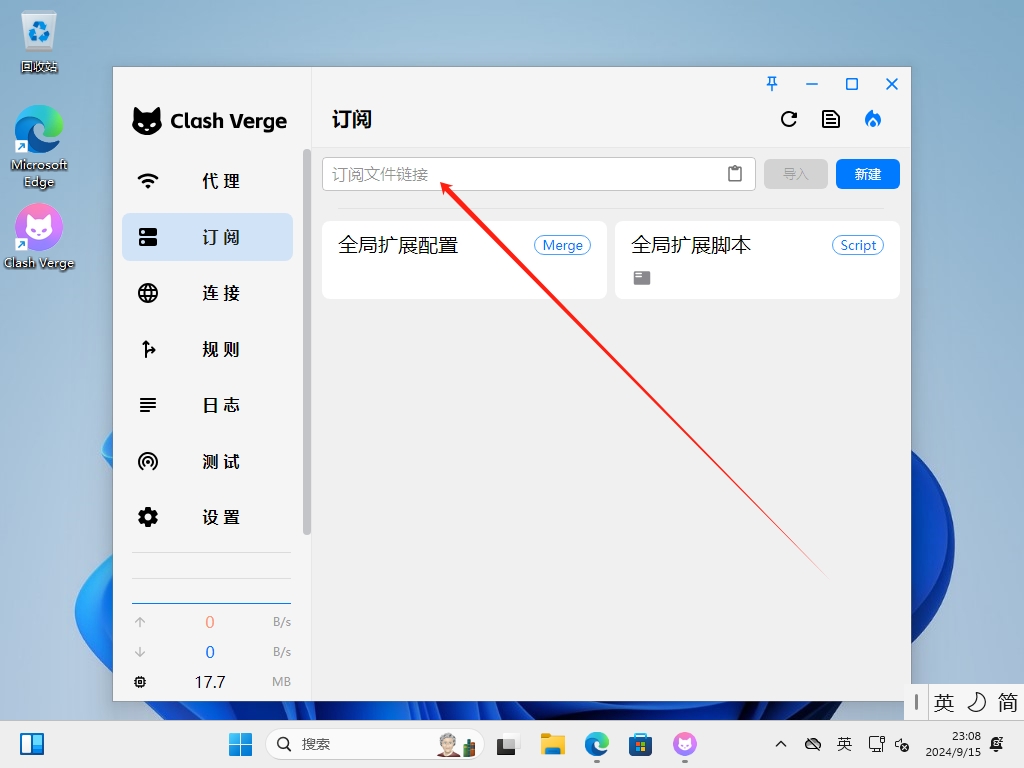
Open Clash Verge Rev, go to the "Subscription" page. Paste the link you just copied into the top input box, then click "Import".
If download fails, try opening the link in a browser to download the config file, then drag it into the software interface.
3
Enable Profile
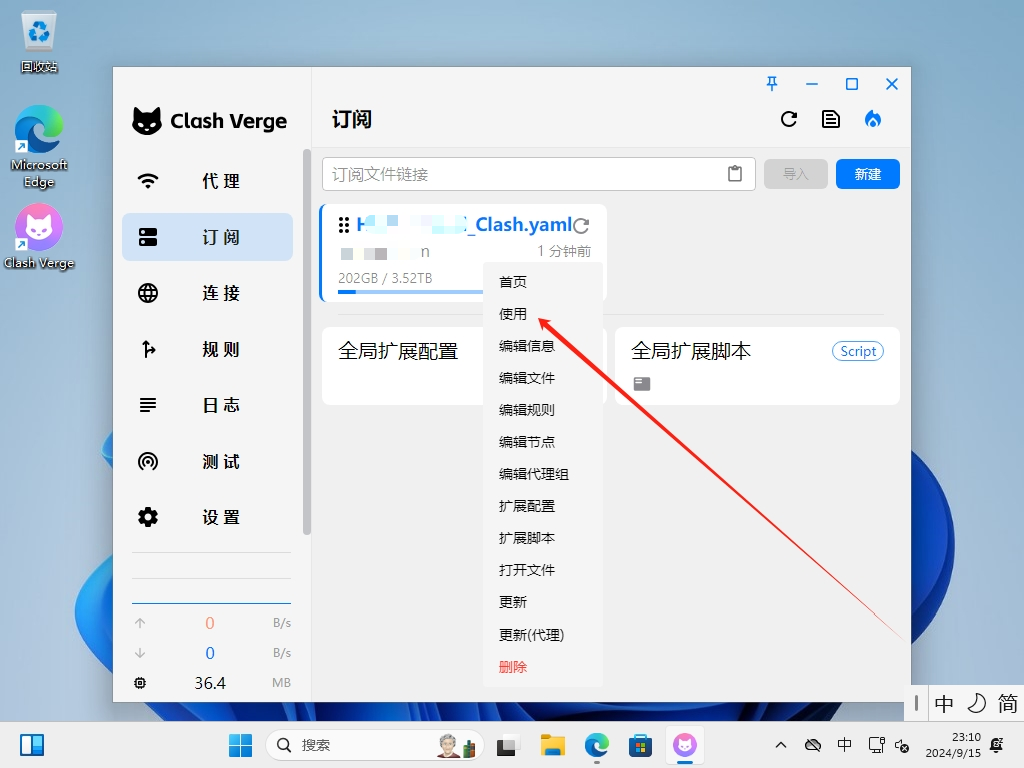
After importing, you will see a new profile card. Right-click the card and select "Use".
4
Select Proxy Node
Go to the "Proxies" page, click the expand icon at the top right. Select a node (e.g., Hong Kong, Japan) in the "Node Selection" group.
🌍 Recommended to choose nodes with lower latency (green numbers).
🤖 To access ChatGPT, please select a US node in the ChatGPT policy group.
🤖 To access ChatGPT, please select a US node in the ChatGPT policy group.

5
Enable System Proxy
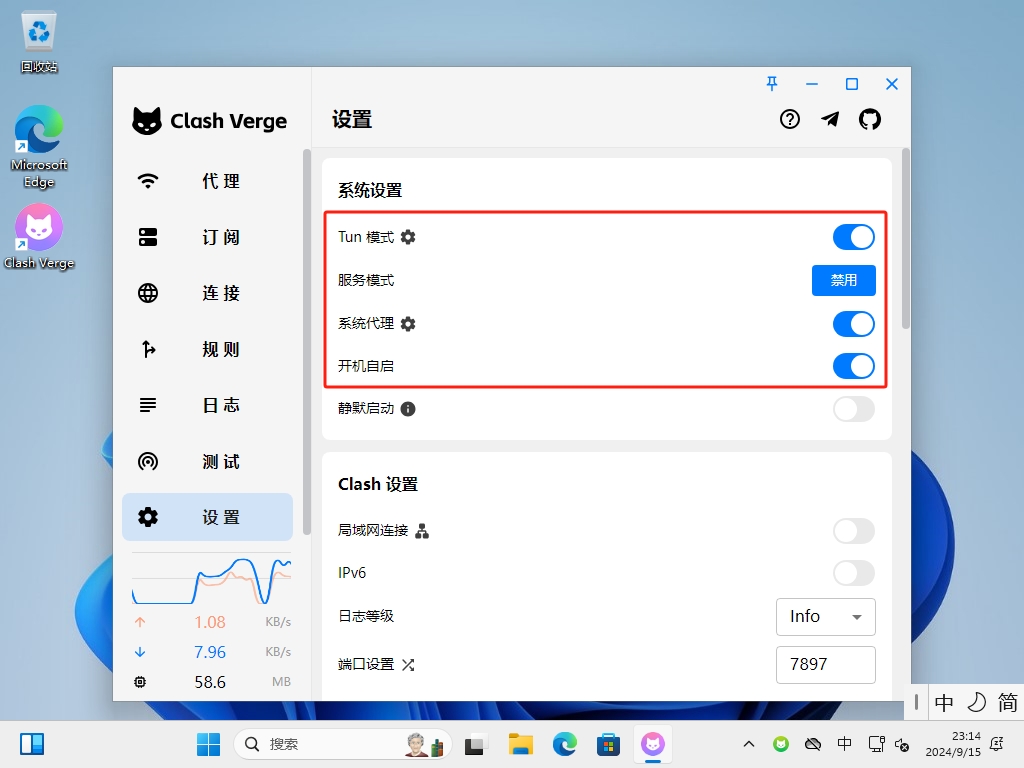
Go to the "Settings" page and turn on the "System Proxy" switch. Now, your browser and apps should be able to access the internet freely!
🛡️ Advanced Tip: Enabling "Tun Mode" allows software that doesn't follow system proxy (like games, command line) to be proxied automatically. This requires admin privileges.
🎉 Configuration Complete!
You can now browse the internet freely.
Issues? Check FAQ or contact support.